The quick way
- Make sure there is a page for the map. In Shopify admin go to Online Store, then Pages, and add a page called, for example, Stockists.
- In the app's Dashboard press Add the map to my theme. The theme editor opens with the map block, "Saol Stockist Map", already added to the page template.
- Press Save in the theme editor.
- Add the page to your store's menu under Online Store, then Navigation.
This adds the block to the theme's default page template, which other pages such as About and Contact usually share, so the map would show on those too. For a map on the stockists page only, see Give the map a page of its own.
Add the block yourself
- In Shopify admin go to Online Store, then Themes, and press Customize.
- Go to the template you want the map on.
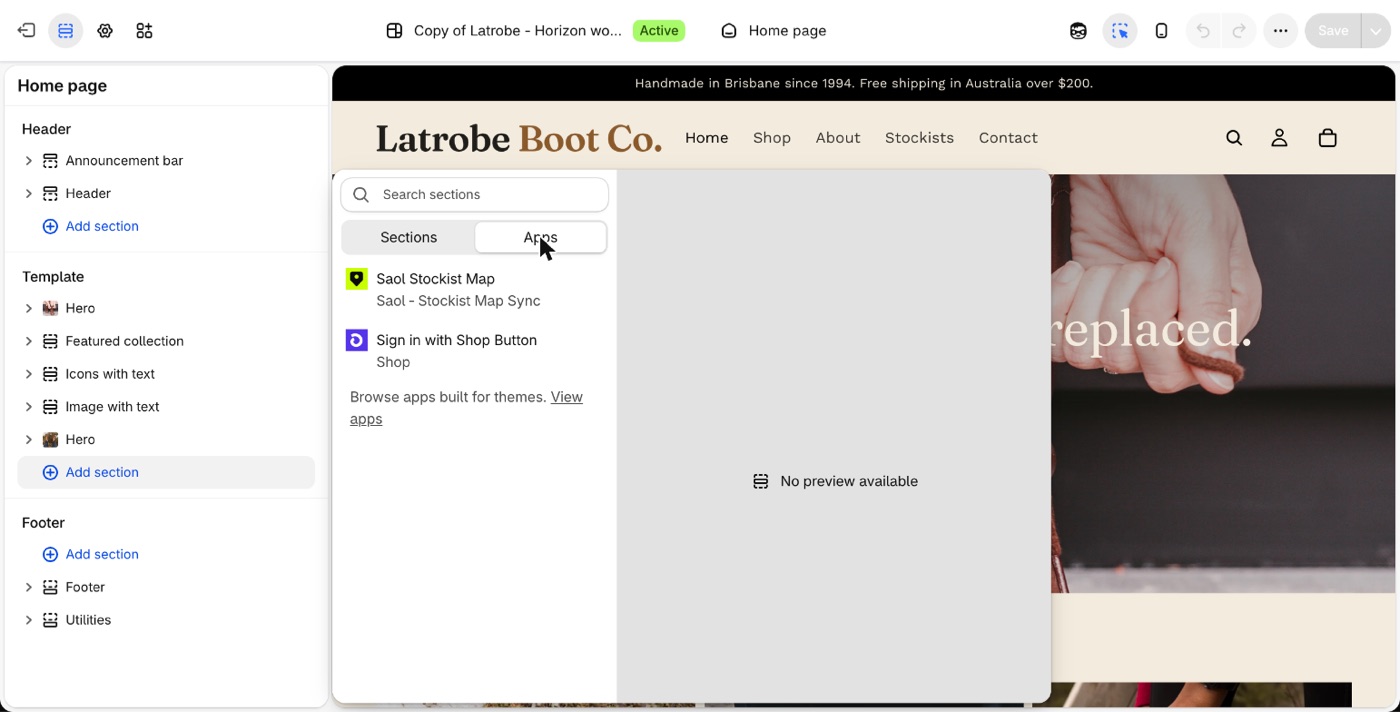
- Click Add section, choose Apps, and pick Saol Stockist Map.
- Save.
Try it on a draft theme first
The block can be added to an unpublished theme. Under Online Store, then Themes, press Customize on the draft theme and add the block there. Nothing changes on your live store until that theme is published.
Put the map on the home page, or anywhere else
Any template works the same way: Add section, Apps, Saol Stockist Map.
Remove the map
In the theme editor, select the block, delete it and save.
Next
Still stuck? Email [email protected] or ask the assistant in the corner of this page. I answer within one business day, Brisbane time.