Most themes use one default template for every page. A block added there shows on all of them. A separate template keeps the map on your stockists page only.
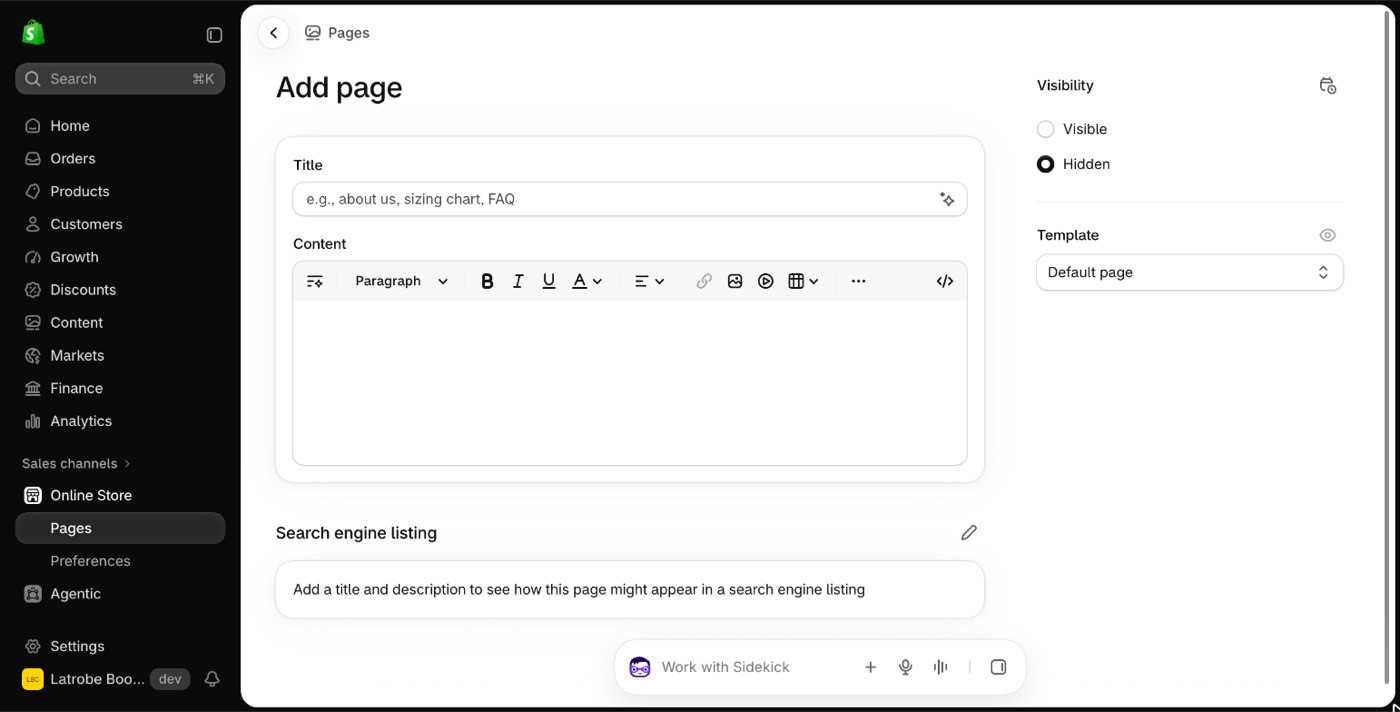
1. Create the page
In Shopify admin go to Online Store, then Pages, and press Add page. Give it a title such as Stockists. The content can be left empty.
2. Create a template for it
- Go to Online Store, then Themes, and press Customize.
- Open the page selector at the top, choose Pages, then Create template.
- Name it, for example
stockists.
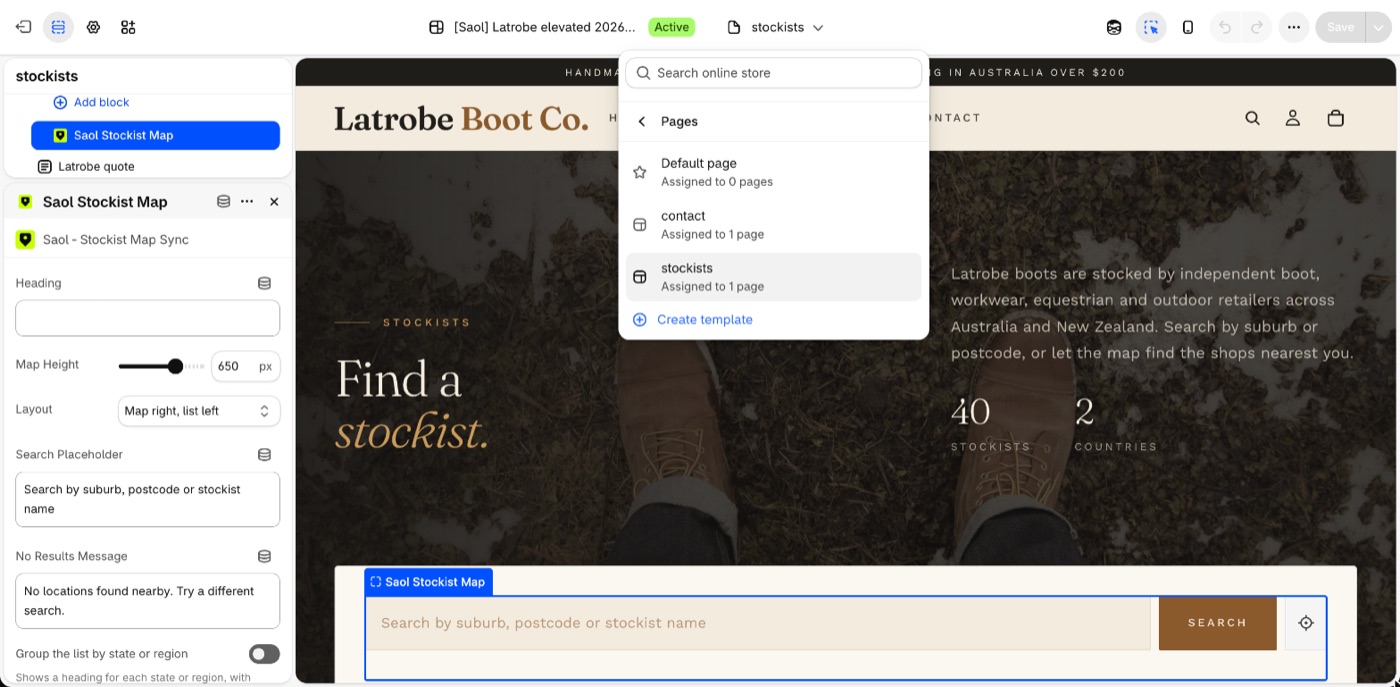
3. Add the map block to the new template
- With the new template open, click Add section, choose Apps, and pick Saol Stockist Map.
- Save.
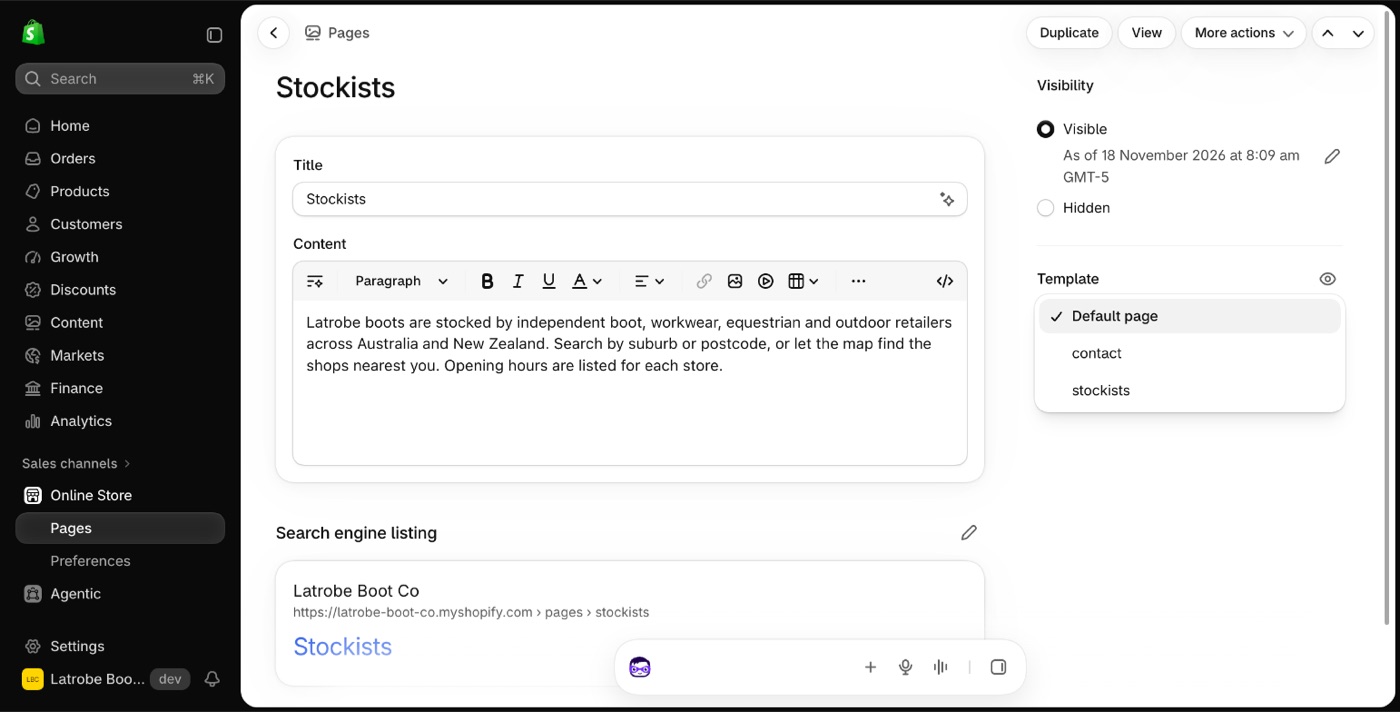
4. Give the page its template
- Go back to Online Store, then Pages, and open your stockists page.
- Set Theme template to the new one.
- Save.
5. Tidy up
- If the block was added to the default page template earlier, open that template in the theme editor, delete the block and save.
- Add the page to your menu under Online Store, then Navigation.
If your page has content you do not want shown, such as an old locator, a template that leaves out the page's own content section shows the title and map only. Email [email protected] if you would like a hand with that.
Still stuck? Email [email protected] or ask the assistant in the corner of this page. I answer within one business day, Brisbane time.