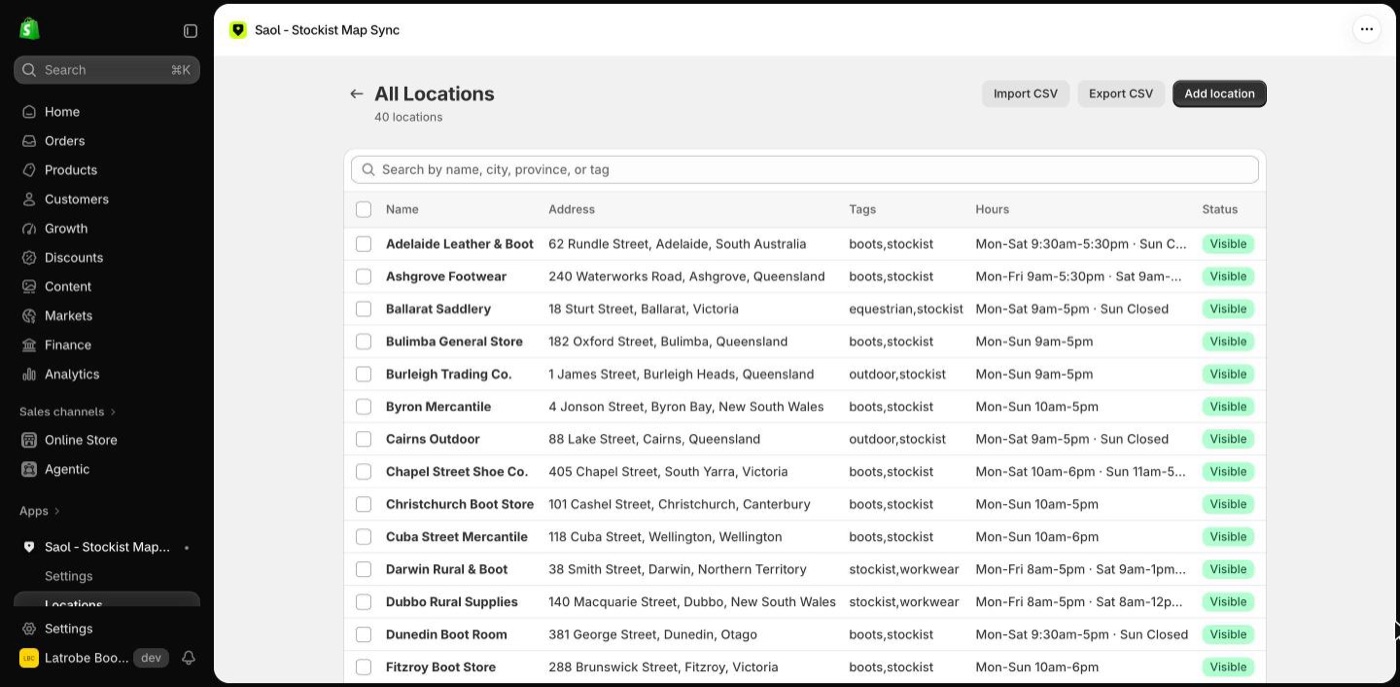
How you add or remove a stockist depends on where it came from. The Locations page in the app shows every stockist. One that came from a tagged customer carries its tags in the Tags column.
Add a stockist
- They are a customer in Shopify. Open the customer in Shopify admin, add your sync tag (
stockistunless you changed it) and save. They appear on the map within moments once your first sync has run. Details: Sync stockists from customer tags. - They are not a customer. In the app open Locations and press Add location. Fill in the name and address and press Add location. Details: Add a stockist by hand.
- You have many to add. Put them in a spreadsheet and upload it on the app's Import page. Details: Import stockists from a spreadsheet.
Remove a stockist
- It came from a tagged customer. Remove the tag from the customer in Shopify admin and save. The stockist leaves the map within moments. Deleting the customer does the same.
- It was imported or added by hand. In the app open Locations, tick the stockist, and choose Delete.
Deleting a tagged customer's stockist in the app is not enough. It comes back at the next sync, because the customer still carries the tag. Remove the tag instead.
Hide a stockist without deleting it
Use this for a shop that is closed for a season, or one you are not ready to show.
- In the app open Locations.
- Tick the stockist, or several.
- Choose Hide from map. To bring it back, tick it and choose Show on map.
A hidden stockist keeps all its details and stays hidden through every sync.
Remove several at once
On the Locations page tick each one, or use the search box to narrow the list first, then choose Delete. For tagged customers, remove the tag in Shopify: on the Customers list tick the customers and use the bulk action to remove tags.
Change a stockist's details
- Name, address or phone of a tagged customer: change them on the customer in Shopify. The map follows.
- Everything else, and all details of imported or hand-added stockists: open the stockist from the Locations page. See Edit a stockist.
- Many at once: Export, edit in a spreadsheet and import again.
How long until the map shows it
The storefront keeps map data for up to five minutes. If a change is not showing, wait a few minutes and reload the page.
Good to know
- Importing a spreadsheet never deletes anything. A stockist missing from the file stays on the map.
- If you are on the Free plan and reach 25 locations, new stockists are not added until there is room. See Plans and billing.
Still stuck? Email [email protected] or ask the assistant in the corner of this page. I answer within one business day, Brisbane time.