Import a file
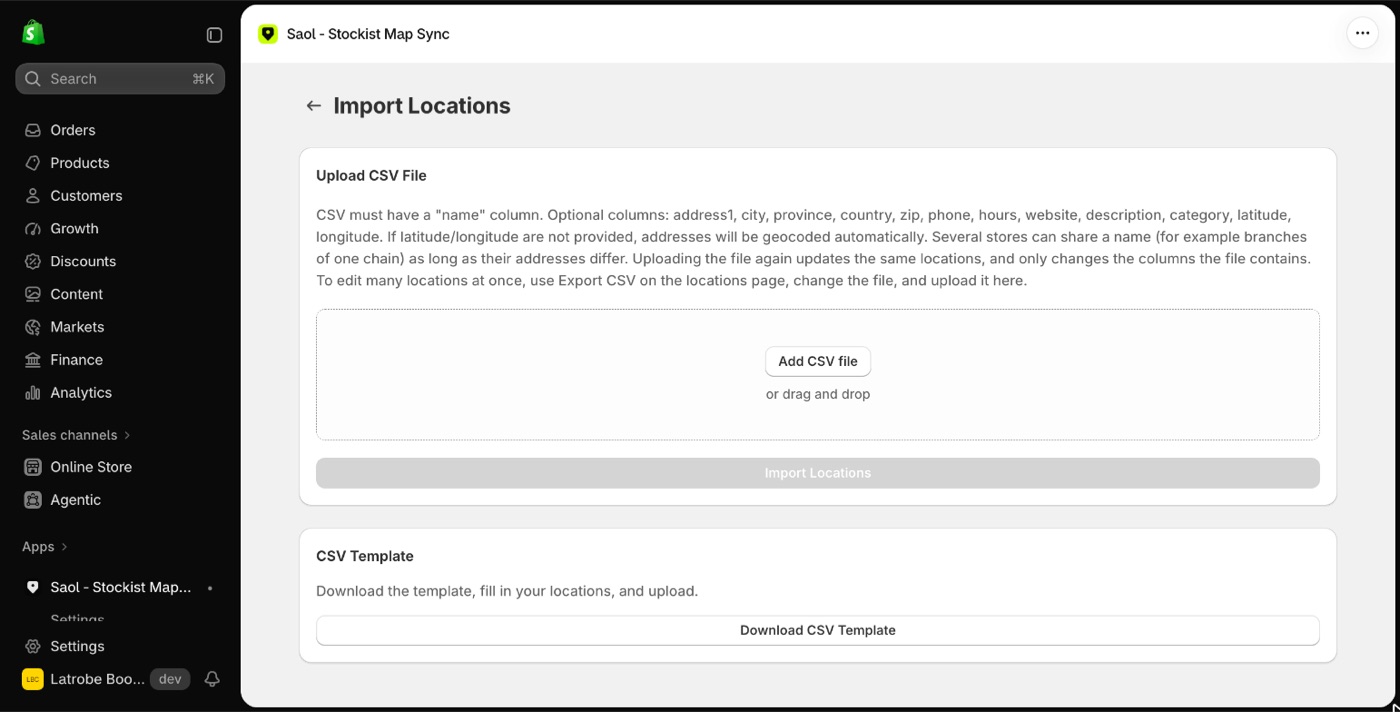
- Open the app's Import page.
- Press Download CSV Template for a file with the right column headings and two example rows.
- Fill in one row per stockist and save it as CSV.
- Choose the file and upload it.
A banner reports how many were imported and lists any rows that had problems.
Columns
The only required column is name. The import reads:
name,address1,address2,city,province,country,zipphone,hours,website,description,categorylatitude,longitude
Other common headings are understood, and capital letters do not matter:
- Address or Street for
address1 - Suburb or Town for
city - State or Region for
province - Postcode, Postal code, Post code or Zip code for
zip - Lat for
latitude; Lng, Lon or Long forlongitude - Telephone for
phone, URL forwebsite - Store name or Business name for
name
Where the pin goes
- If a row has
latitudeandlongitude, they are used. - If not, the address is looked up automatically.
- A row with neither an address nor coordinates is skipped and listed in the result.
Categories and hours in a file
categorycan hold one category or several separated by commas, for exampleBoots, Workwear. See Categories and filter buttons.hourscan be typed as a line, for exampleMon-Fri 9-5, Sat 9-3. See Opening hours.
Updating stockists you already have
- Uploading the same file again updates the same stockists and does not make copies.
- Only the columns present in the file are changed.
- A row with the same name as a stockist already on the map updates that stockist, including one synced from a tagged customer. Capitals are ignored. Where the file gives an address, it must match too.
- So a sheet with just
nameandhourscolumns adds hours to stockists you already have. - Two stores can share a name, such as branches of a chain, as long as their addresses differ.
Importing never deletes anything. To take stockists off the map see Add and remove stockists.
Large files
Rows without coordinates need an address lookup each, which takes time. If you have more than about 60 rows without coordinates, upload the file in two halves.
If something goes wrong
- "Address lookup is unavailable right now": the problem is on the app's side, not the file. Upload the same file again in a few minutes. Rows already imported are not duplicated.
- The plan's location limit is reached: new rows after that point are not added, existing ones are still updated, and the result says so. See Plans and billing.
- Accented letters look wrong: in Excel, save as "CSV UTF-8".
- Postcodes or phone numbers lost their leading zero: the import recognises this and does not overwrite the stored value.
There is no preview step before an import, and no scheduled or automatic import.
Still stuck? Email [email protected] or ask the assistant in the corner of this page. I answer within one business day, Brisbane time.