Two kinds of hours
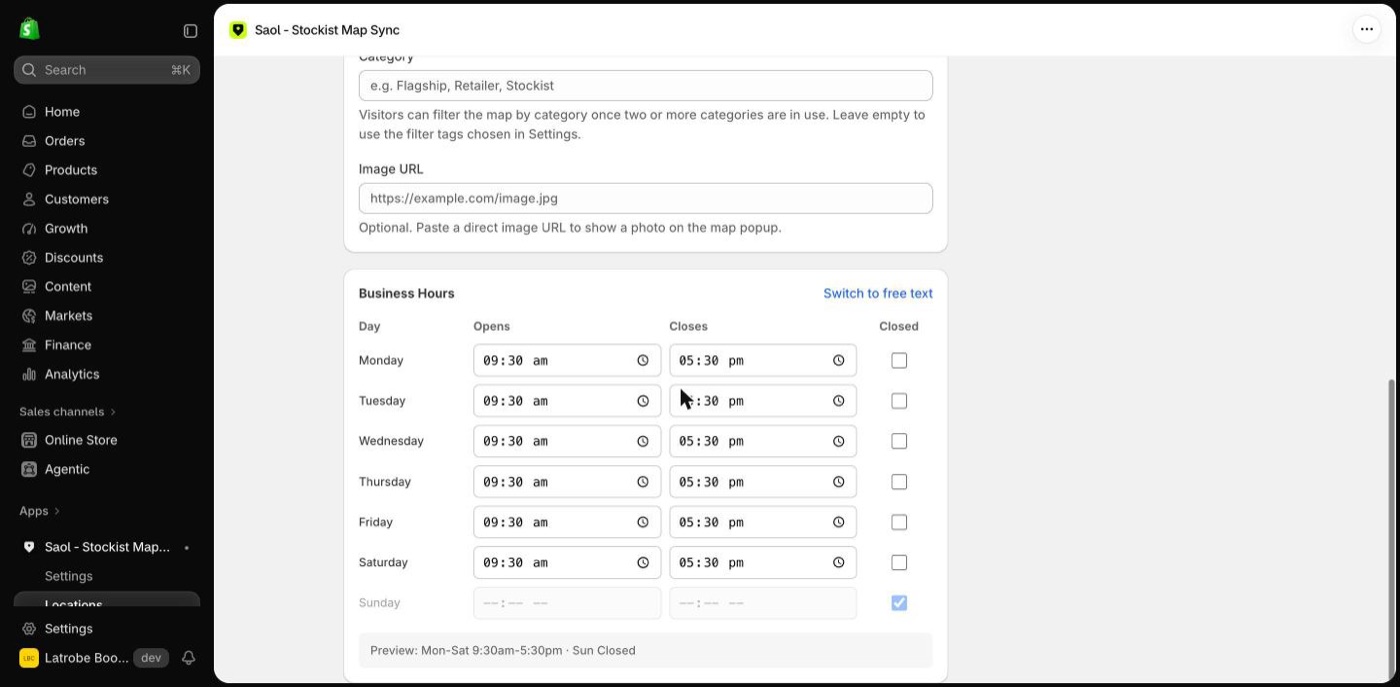
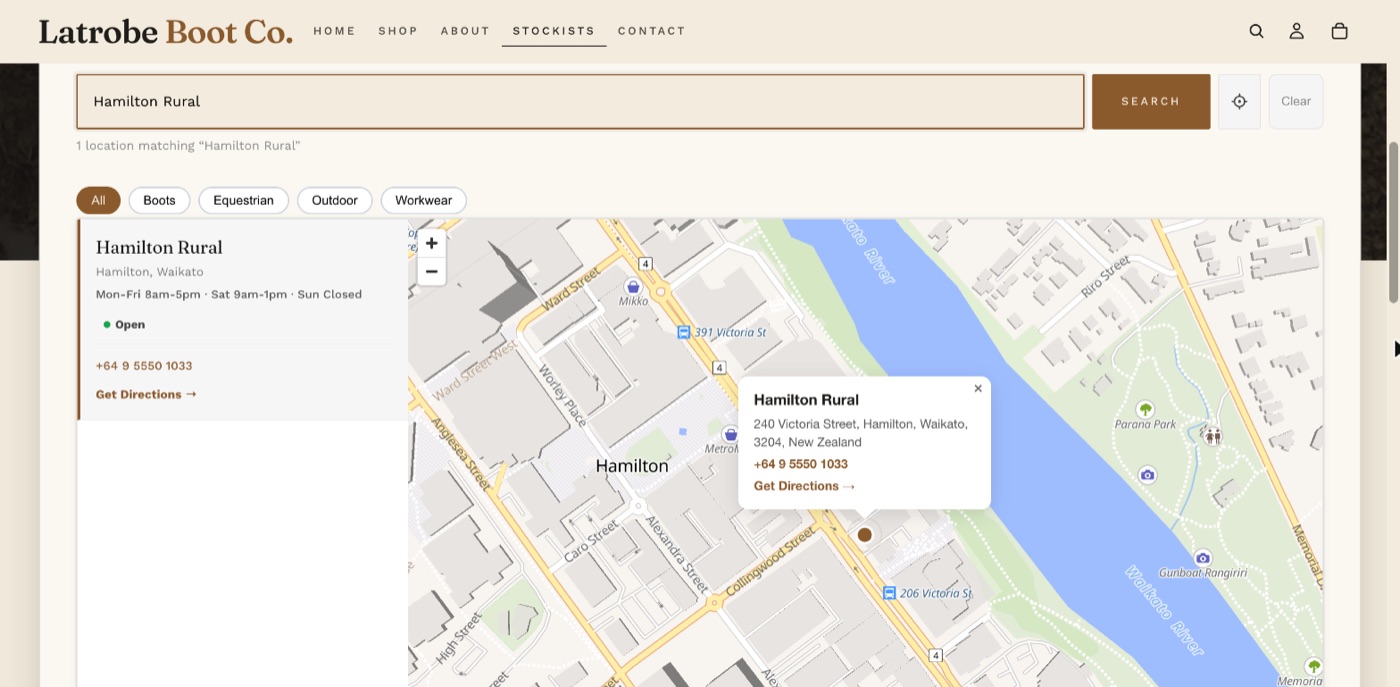
- Structured hours: a row per day with an opening time, a closing time and a Closed tick. These give the live Open or Closed badge on the map.
- Free text: anything you like, such as "By appointment". It is shown as typed, with no badge.
Set hours for one stockist
- On the app's Locations page, open the stockist.
- Under Business Hours, set each day's opening and closing time, or tick Closed.
- Save.
To type free text instead, choose Switch to free text.
Structured hours allow one opening period per day. For split hours, such as closing for lunch, use free text.
Set hours for many stockists by spreadsheet
Add an hours column to a CSV and type each stockist's hours as a line, for example:
Mon-Fri 9-5, Sat 9-3Mon-Sat 8:30am-5pm, Sun Closed
When the app can read the line it saves structured hours, so the stockist gets the badge, and rewrites the text in its own wording, for example "Mon-Fri 9am-5pm". Days not mentioned are treated as closed. A line it cannot read, such as "By appointment", is kept as typed and shows no badge.
A file with only name and hours columns adds hours to stockists you already have. See Import stockists from a spreadsheet.
How Open or Closed is worked out
The badge uses the stockist's own local time, worked out from where its pin is. It is right for a shopper in any time zone.
Still stuck? Email [email protected] or ask the assistant in the corner of this page. I answer within one business day, Brisbane time.